The question of whether AI belongs in Revit is, at this point, settled. Autodesk is rolling out MCP. ChatGPT and Claude are open in every architect's browser. AI suggestions are baked into the latest version of nearly every BIM tool we touch.
So the conversation has moved on. The real question is no longer should AI be in Revit? It's what does AI in Revit look like when it's done well — and how do you tell when a tool has crossed a line?
Three failure modes show up consistently. Each one corresponds to a principle that any AI tool worth adopting should be designed around.
The Three Failure Modes of AI in Design Tools
1. Authorship erosion
This is the obvious one. AI tools that quietly take over decisions instead of presenting options. The architect ends up in the passenger seat, approving outputs they didn't generate, on terms they didn't set.
The line that matters:
AI suggests. The architect decides.
Anything that inverts that order — an AI that places elements, generates documents, or commits decisions without explicit confirmation — has crossed from assistance into authorship.
This isn't an abstract concern. When a project goes wrong, the architect of record is the one whose seal is on the drawings. The AI did it is not a legal defense. If you cannot point to the specific moment you reviewed and approved a decision, you cannot defend it.
2. Data leakage
Every AI tool sends data somewhere to get a response. That somewhere is almost always a large language model run by a third party — OpenAI, Anthropic, Google, Microsoft. The question is: what specifically goes out, and what stays local?
Most AI tools are not transparent about this. You ask the AI a question; it responds; you have no idea what context was attached to your prompt. Your project address? Your client name? The room program? The keynote IDs? The cost estimates? It's all opaque unless the tool publishes its data flow.
That opacity is a problem because it intersects badly with two other things: the AI provider's terms of use (which may permit training on your inputs), and your professional services contract with the client (which may prohibit sharing project data with third parties without consent). Architects who paste client information into a chatbot without checking either of those documents may be violating one or both without realizing it.
3. Loss of agency
The third failure mode is subtler. It's the AI tool that runs whenever it feels like, can't be cleanly disabled, or where the off switch is buried six menus deep. The architect loses the ability to choose when AI is in the room and when it isn't.
This matters because not every project is appropriate for AI assistance. Government work, defense contracts, healthcare projects with PHI implications, anything under NDA — there are real workflows where the answer to "should I use AI here?" is unambiguously no. A tool that respects the architect's judgment lets the architect make that call cleanly, project by project.
What Safe AI Looks Like Instead
Each failure mode points at the principle a safe AI tool should be built around. The mapping is direct:
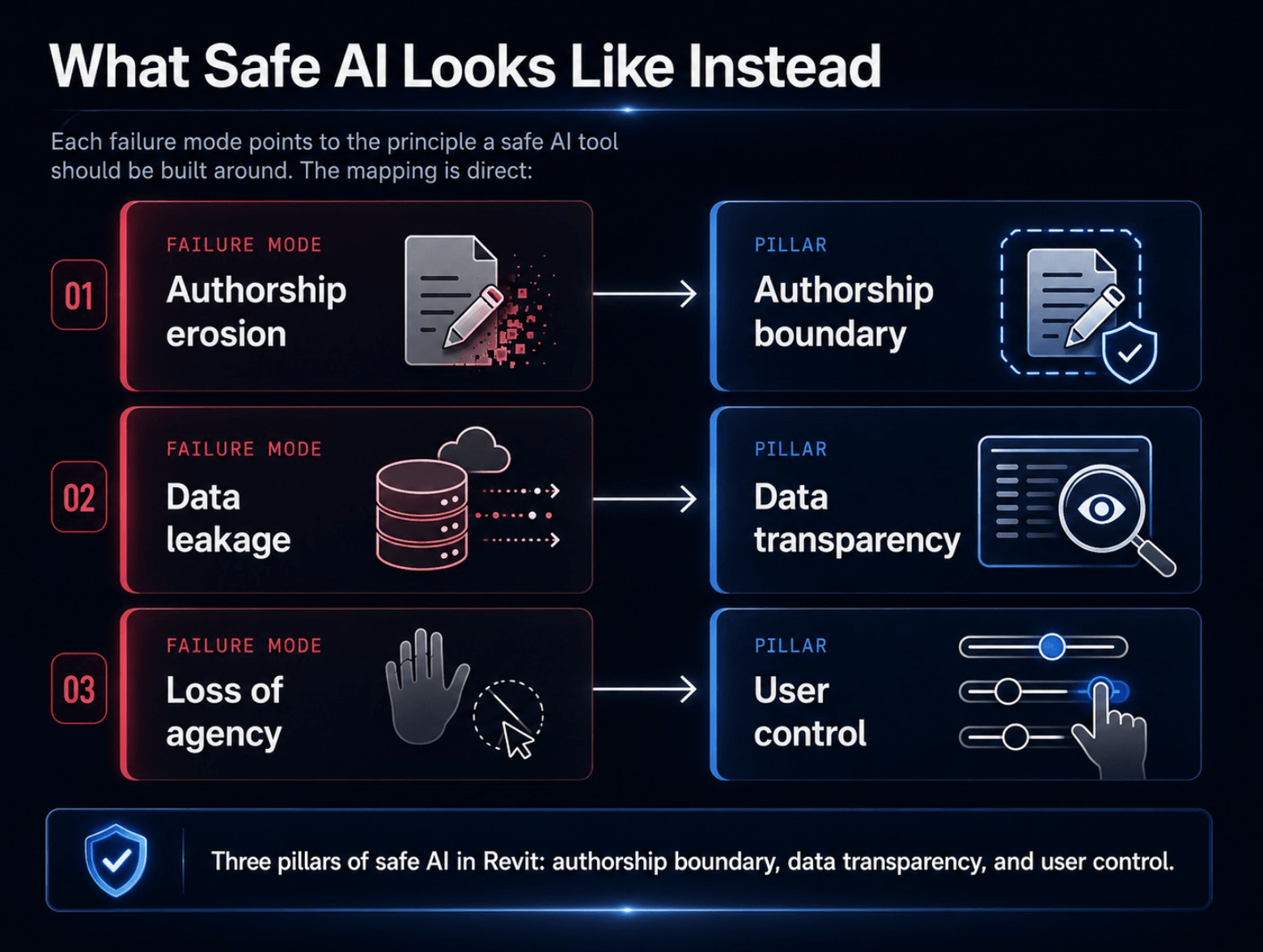
Pillar 1: Authorship boundary
There should be a visible line between what the AI proposed and what the architect approved. AI generates options; the architect picks one (or rejects all of them); the chosen option is the one that lands in the model. The AI never has a write path to the project without that explicit human step in between.
A useful gut check: if you removed the AI tomorrow, would the architect still be able to do the work? If yes, the AI is an assistant. If no, the AI has become the author, and you have a problem the day the AI service goes down, changes its terms, or makes a confident mistake nobody catches.
Pillar 2: Data transparency
You should be able to read a list of what your AI tool sends to the LLM, in plain English, before you ever click a button. Anything not on that list, the tool does not send.
The list should be specific. Not "context about your project." Specific fields, named: project address, project number, active view name, family and type names, material descriptions, prompt text. And it should be explicit about what does not leave your machine: model geometry, project files, file paths, file names.
That clarity isn't just hygiene — it's what makes the tool legally usable on real projects. A BIM manager reviewing whether an AI tool is safe for client work needs to be able to point at the data list and reconcile it against the project's confidentiality terms. If the tool can't give them that list, the tool is not suitable for serious work, period.
Pillar 3: User control
There should be an off switch. It should be findable in under thirty seconds. When it's off, the tool makes zero AI calls — not "fewer calls," not "calls without context," zero.
The off switch is the floor, not a feature. It is table stakes for any tool that wants to be trusted on a sensitive project.
Bonus points if the control is granular: disable AI for a specific project, leave it enabled for others. That matters when an architect is doing classified work on Tuesday and a residential remodel on Wednesday.
What This Looks Like in Smart Tools
This isn't theoretical for us. Smart Keynotes was designed around these three pillars from the beginning. Here is how each one shows up in the actual product.
Authorship boundary
When Smart Keynotes' AI assist proposes a keynote, the suggestion lands in a Draft Note panel with two buttons: Use This and Discard. Nothing reaches the model until the architect explicitly clicks Use This. There is no autonomous mode, no "let the AI handle the documentation set" toggle.
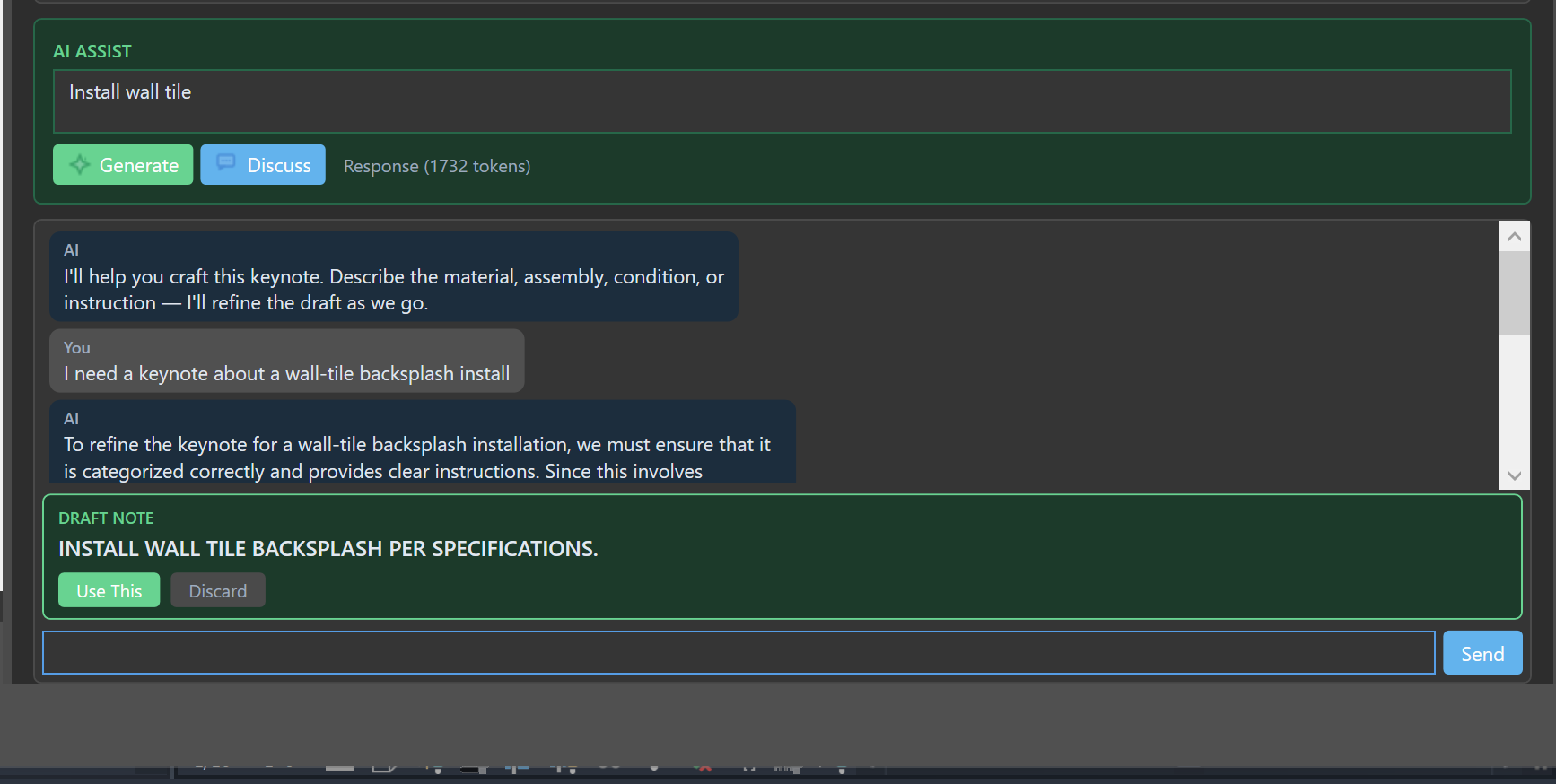
The designer must approve any AI-assisted note. No exceptions, no quiet automation, no fallbacks that bypass the human decision.
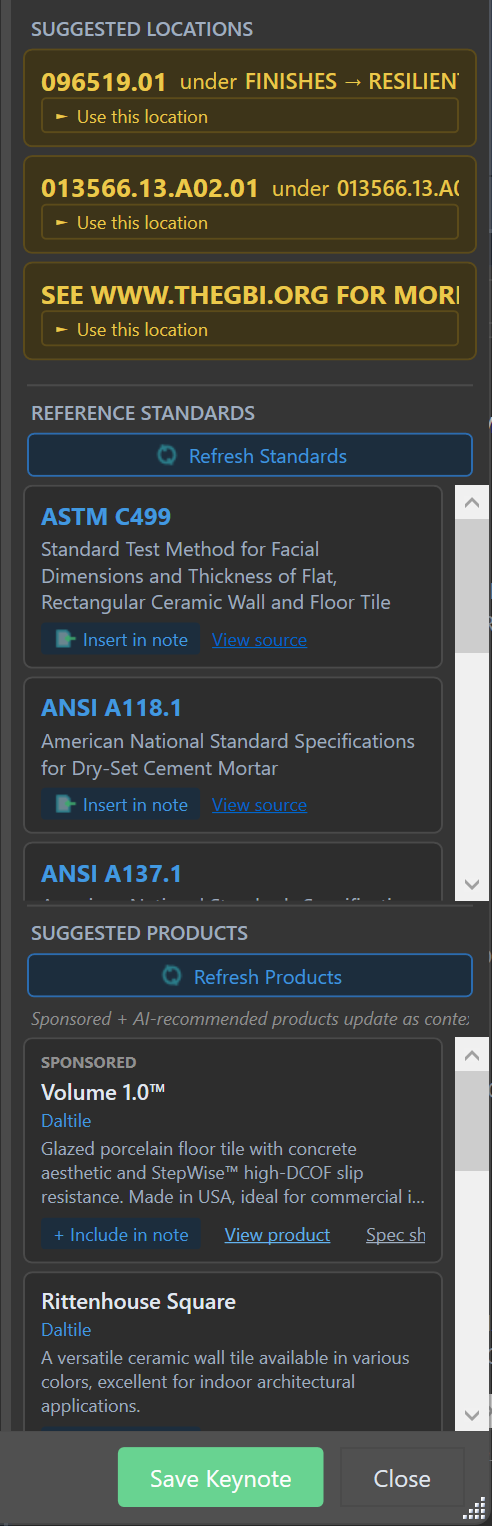
The suggestion workflow also surfaces the supporting material behind each recommendation: reference standards (ASTM, ANSI, etc.), source documents, and product specifications. You can View source on any standard or View product on any spec before deciding whether to Insert in note — so the path from AI suggestion to architect's decision is auditable. You always know what the AI was working from.
Data transparency
When you use Smart Keynotes' AI features, the tool sends a context block through our server to OpenAI. That block contains: Revit element categories, family and type names, material names, wall and assembly descriptions, structural usage, level names, the active view name and type, existing keynote text and IDs in the current keynote file, project unit system, project country, project address (as set in Revit Project Information), and any prompt text you type into the AI dialog.
It does not send: model geometry, project files, file paths, or file names. The full list is published in our privacy policy — not buried in a TOS, not hidden behind a click-through, just listed plainly on the public page anyone can read.
Messages pass through our server in real time and are not stored in our database. OpenAI's API terms govern handling on their side, and their published policy states that API inputs are not used to train their models.
User control
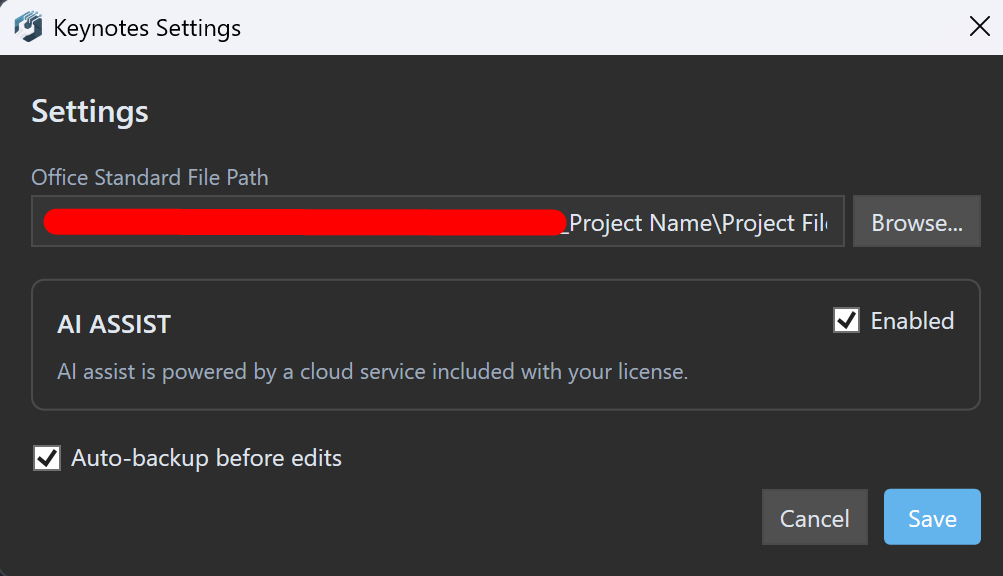
Open Smart Keynotes → Settings. The AI Assist section has a single Enabled checkbox. Uncheck it, save, and no AI calls are made — the keynote tools continue to work exactly as before, just without AI suggestions. Architects on classified or NDA work can leave this disabled by default and turn it on only on projects where AI usage is explicitly cleared.
We didn't build it this way because of pressure from a reviewer or compliance team. We built it this way because we use the tool ourselves on real projects, and we wouldn't trust a tool that didn't work this way.
A Checklist for Evaluating Any AI Tool in Revit
Before adopting an AI add-in for Revit — ours or anyone else's — ask the vendor these five questions. If they cannot answer all five clearly, the tool is not ready for production work.
- What exactly does this tool send to its AI service? A bulleted list of specific data fields, not "context about your project."
- What does it explicitly not send? The negative list matters as much as the positive one. Confirm geometry, file paths, and file names stay local.
- Where does that data go? Which LLM provider, in which region, under whose terms of use, with what retention policy. If the answer involves training on your inputs, that's important to know.
- Can I disable AI entirely? Where is the setting, how quickly can it be found, and once it's off, are zero AI calls made?
- Does the AI ever modify my model without an explicit confirmation step? If yes, that's an authorship-boundary problem. The answer you want is no.
This list takes ten minutes to walk through with any vendor. The tools worth using will answer all five immediately. The tools that hedge or wave you off should be either evaluated with much more scrutiny — or skipped.
The Real Threat
AI in Revit isn't the threat.
The threat is AI tools that don't respect the architect's judgment, that don't show their data flow, that don't give the user clean control over when and how AI runs. Those tools exist and will continue to be built — the AI gold rush is producing them faster than architects can vet them.
The good news is that "safe AI" is not a vague aspiration. It's three concrete things — authorship boundary, data transparency, user control — and any tool that takes those seriously can be identified inside of a ten-minute conversation.
Demand those three things from every AI tool you adopt. Walk away from the ones that cannot deliver them. That is how the AI-in-Revit story stays one of architects gaining leverage — instead of architects losing it.