In this guide
1 What Smart Cover Matrix does
Your cover sheet index has to list every drawing in the set — including the civil, structural, and MEP sheets that live in someone else's model. Keeping that list current usually means someone retypes a consultant's sheet list by hand at every milestone, and the index quietly drifts out of date between issues.
Smart Cover Matrix reads the consultant's PDF set (or an Excel sheet log) and syncs it into your Revit sheet index as placeholder sheets — so they appear in your sheet list schedule without becoming real sheets in your model. Nothing is written until you review it, and existing sheets are never renumbered or deleted.
2 Installing & finding it in the ribbon
Smart Cover Matrix is free — no license key and no trial, and supports Revit 2025, 2026, and 2027.
- Download the installer from the Free Tools page.
- Close Revit, run the downloaded
.msi, and follow the prompts. - Re-open Revit and look for Import Sheet Index on the Smart Tools tab, in the Cover Matrix panel.
Everything happens on your machine — no account, and nothing is uploaded.
3 Importing a PDF set or Excel sheet log
- Open the Revit model that owns the index — usually your architectural model.
- Click Import Sheet Index and pick the consultant's PDF set or Excel sheet log.
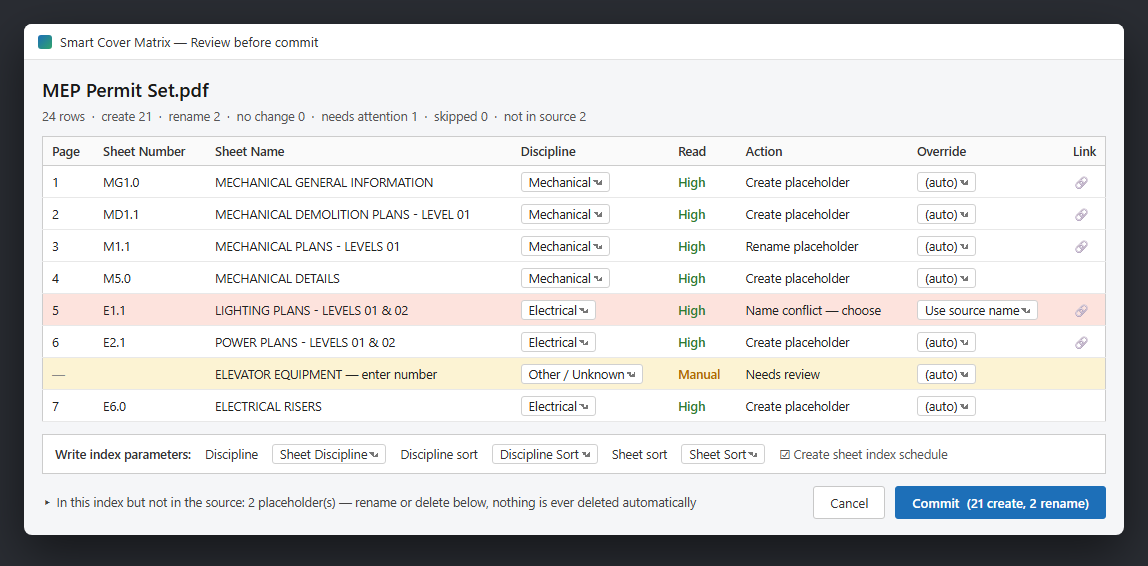
- The review window opens with one row per sheet found.
From a PDF, sheet numbers and names are read from the PDF's page labels when they're there, and from the title block itself when they aren't — consultants export the same set in wildly different ways, so several fallbacks are tried in order. The Read column tells you how confident each row is: High means two independent readings agreed, Verify means it's worth a glance.
From Excel, common sheet-log layouts are recognised automatically, including Bluebeam page-index exports and plain two-column lists with or without a header row.
Scanned or flattened PDFs have no readable text at all. Cover Matrix tells you rather than guessing — you can still type the numbers into the grid, or use an Excel log instead.
4 Reviewing before you commit
This is the part that matters: nothing touches your model until you press Commit, and the button always says exactly what it will do — for example Commit (24 create, 2 rename).
Every cell is editable. Fix a sheet number or name, change a discipline, and the whole plan re-evaluates as you type. Each row shows the action it will take:
- Create placeholder — the sheet isn't in your project yet.
- Rename placeholder — it exists and the name has changed; the old and new names are shown.
- Up to date — nothing to do.
- Matches live sheet — the number belongs to a real sheet in your model. Your sheet already appears in the index, so nothing is created.
- Name conflict — a live sheet has that number under a different name. You choose: keep your model's name, take the source's, or skip.
- Needs review — no number could be read; type one or skip the row.
Right-click for Add sheet, Remove selected, Skip selected, and Reset to (auto). Skipping keeps a row visible as a deliberate decision; removing takes it out entirely. Commit stays disabled until every conflict is resolved or skipped.
Two panels sit below the grid. In this index but not in the source lists sheets your project has that the consultant's file doesn't — often a dropped sheet worth chasing. They are reported, never deleted automatically; placeholders can be renamed or explicitly marked for deletion there. Sheets in loaded Revit links is reference only, and flags any sheet whose name in the link disagrees with the PDF — a coordination issue you'd otherwise find at the next submittal.
5 Disciplines, sort values & the index schedule
Each sheet's discipline is inferred from its number prefix — A architectural, C civil, M mechanical, and so on — and you can override any row from the dropdown. Choose Add / remove disciplines… in that dropdown to edit the list itself: add a group, set its sort base, list the prefixes that belong to it. Your standard is saved and reused on every future import.
The Write index parameters bar decides where the values go. Cover Matrix looks for the sheet parameters your template already has and offers them first — mapping onto your standards rather than duplicating them. If you'd rather it create its own, choose (create Smart Tools parameters) and it adds three shared parameters (Sheet Discipline, Discipline Sort, Sheet Sort) bound to Sheets.
Sort values are assigned per discipline group in increments of ten, in natural order — so A2 sorts before A10, the way a person would expect. Tick Create sheet index schedule on commit and you get a sheet list grouped by discipline and sorted correctly, ready to drop on the cover sheet. Existing schedules are never modified.
Live sheets are left alone unless you tick Also write to matched live sheets. It's off by default because those are your sheets.
6 Re-syncing when a consultant reissues
Cover Matrix is built for the second, fifth, and tenth import as much as the first. Run the same command on the new PDF and it matches by sheet number, so you see only what actually changed: new sheets to create, renamed sheets with old and new side by side, and everything else marked Up to date.
Because matching ignores incidental differences in spacing, dashes, and capitalisation, a sheet doesn't look "changed" just because the consultant's exporter formatted it differently this time.
The whole import is a single undo step — one Ctrl+Z reverses it, placeholders, parameters, schedule and all.
7 Troubleshooting
Sheet names are blank. The PDF's page labels carry no names and the title block couldn't be read confidently. Type the names in the grid — they'll stick for every future re-sync — or import an Excel sheet log instead.
A name looks wrong and is marked Verify. That name was inferred from the title block rather than read from a label, which is why it's flagged. Cover sheets are the usual culprit because their title block is often laid out differently. Correct the cell and commit.
"This PDF appears to be scanned." There's no text in the file to read. Use the consultant's original digital PDF or an Excel log.
The file is open in Bluebeam. That's fine — Cover Matrix reads files other programs have open.
A number belongs to a live sheet. Revit requires sheet numbers to be unique, so a placeholder can't be created alongside your real sheet. That row matches your sheet instead, which is what you want: it's already in the index.
8 Getting help
Questions or a feature request? We're glad to help.
- Visit the Support page.
- Email info@revit-smarttools.com.
Explore the rest of the toolkit
Smart Cover Matrix is one of several free Smart Tools for Revit.
See all Free Tools